SimplyBook.me Zapier Integration: New Triggers, Actions, and One-Click Setup
 3234
3234 0
0 
This post is also available in:


If you run a service business on SimplyBook.me, every booking you take usually has a follow-up workflow attached to it. Update the CRM. Add the client to a Mailchimp list. Send the team a Slack ping. Drop the row into a Google Sheet for reporting. These are the small, repetitive tasks that quietly eat your day.
The SimplyBook.me Zapier integration removes that work by automating booking workflows between your appointment scheduling software and the other tools you use. We have just shipped its biggest upgrade yet: the integration now works in both directions. With five new actions, Zapier can create clients, create bookings, retrieve booking details, and cancel bookings inside SimplyBook.me on its own. No coding, no manual exports, no copy-pasting between tools.
This post walks through exactly what changed, how to use the new actions, and the workflows you can build today.
What is the SimplyBook.me Zapier integration?
The SimplyBook.me Zapier integration is the official connector that links your appointment scheduling software with thousands of apps in the Zapier ecosystem, including CRMs, email marketing platforms, spreadsheets, communication tools, and accounting software. When something happens in SimplyBook.me — a new appointment, a payment, a cancellation — Zapier picks it up and passes it on. With the latest update, Zapier can also make changes inside SimplyBook.me when an event happens in another app, so the data moves in both directions.
In practical terms, it lets you:
- Keep your CRM up to date with every new booking and client.
- Send notifications to your team when appointments are confirmed or changed.
- Add new clients from forms, ads, or other platforms directly into SimplyBook.me.
- Connect to thousands of apps in the Zapier ecosystem.
Each automation is called a Zap. A Zap has a trigger (the event that starts it) and one or more actions (the things that happen as a result). The 2026 update significantly expands what SimplyBook.me can do on both sides of that equation.
What changed in the 2026 update?
There are three changes worth knowing about:
- A new direct authorization flow. You can now connect Zapier from inside the SimplyBook.me admin interface with one click, using OAuth 2.0. No more copying API keys.
- Five new actions. Zapier can now perform operations inside SimplyBook.me, not just listen for events.
- An upgrade to User API v2. All new authorizations use the modern User API v2 endpoint for better stability and long-term support.
The existing triggers (New Booking, Booking Change, Booking Cancellation, New Client, New Offer, and New Invoice) all remain in place and continue to work as before. The update is purely additive.
Find more about SimplyBook.me April updates.

How does the new direct authorization flow work?
Before the update, connecting Zapier to SimplyBook.me meant opening Zapier, then opening your SimplyBook.me admin panel in another tab, finding your company login, user login, and API key, and pasting them across. It worked, but it was the kind of setup step that generated support tickets when something went wrong.
The new direct authorization flow turns that into four steps inside SimplyBook.me:
- Enable the Zapier Connector custom feature on your Custom Features page.
- Click the Quick Connect button on the Zapier plugin settings page.
- Approve access on the Zapier authorization page that opens.
- Done. SimplyBook.me receives the OAuth token automatically and creates the Zapier authentication entry for you.
There is no manual copying. The OAuth access token refreshes automatically when it expires, so the connection keeps working without you having to log in again every few weeks. Most users will set this up once and never think about it again.
After connecting, you can manage all your Zaps without leaving SimplyBook.me. The plugin page shows your Zaps inline, with controls to rename, edit, enable, disable, or delete each one. The page refreshes after every action so it always reflects the current state.
For users who prefer the manual route, manual connection via your company login, user login, and API key is also available. The Zapier plugin settings page in SimplyBook.me still displays these credentials, so technical users and edge cases (such as corporate environments with restricted browser redirects) can still authenticate the legacy way. Note that if you go the manual route, you will not be able to manage your Zaps from inside the SimplyBook.me admin interface; you will work from Zapier.com instead.
What are the 5 new SimplyBook.me actions in Zapier?
Until now, the SimplyBook.me Zapier integration was one-directional: SimplyBook.me sent events out to Zapier, and Zapier sent them on to other tools. That covered a lot of useful workflows, but it meant you could not, for example, have an external form create a SimplyBook.me booking on its own.
The five new actions close that loop. Here is what each one does and a real example of when you would use it.
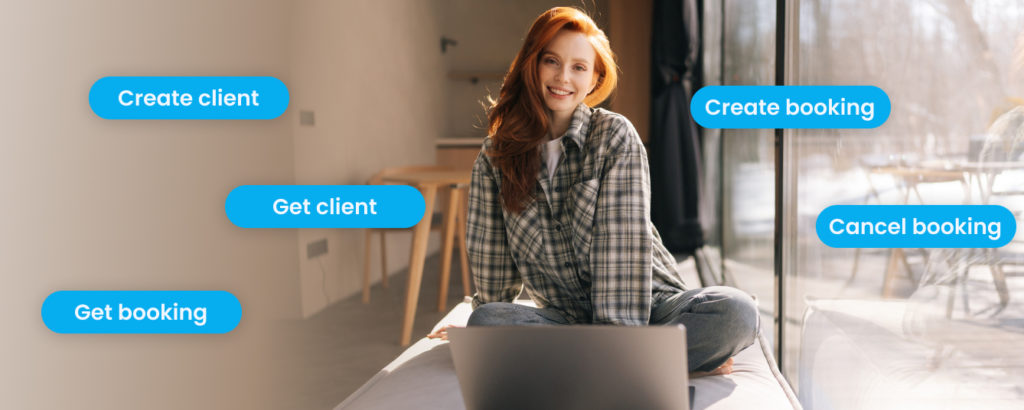
1. Create Client
Creates a new client record in your SimplyBook.me account and returns the client data.
Example workflow: A new lead fills out a Typeform on your website. Zapier detects the new submission, takes the name, email, and phone number, and creates a matching client in SimplyBook.me. The next time that person books, your records are already in order.
2. Get Client
Retrieves an existing client’s information by their ID.
Example workflow: Before sending a re-engagement email through Mailchimp, your Zap looks up the client in SimplyBook.me to enrich the email with details like their last visit date or preferred service.
3. Create Booking
Creates a new booking in SimplyBook.me and returns the full booking details.
Example workflow: A support agent in your help desk tool logs a request that requires an appointment. They click a button, and a Zap creates the booking directly in SimplyBook.me, assigns it to the right staff member, and confirms it back to the client. No double entry.
4. Get Booking
Retrieves detailed information about a specific booking by its ID.
Example workflow: A reporting Zap pulls every new booking’s full details (service, staff, duration, price) into a Google Sheets dashboard or a Power BI report so the management team gets a daily snapshot.
5. Cancel Booking
Cancels an existing SimplyBook.me booking by its ID.
Example workflow: A client cancels through your CRM portal instead of through SimplyBook.me. A Zap detects the cancellation in the CRM and automatically cancels the matching booking in SimplyBook.me, so your calendar stays accurate without your team doing anything.
What triggers does the SimplyBook.me Zapier integration support?
The five new actions sit alongside the six existing triggers. A trigger is what starts a Zap. The complete list as of May 2026 is:
| Trigger | Fires when |
|---|---|
| New Booking | A new booking is created in SimplyBook.me |
| Booking Change | A booking is rescheduled or modified (date, time, service, provider, status, or intake form answers) |
| Booking Cancellation | A booking is cancelled |
| New Client | A new client is added, either via a booking or manually in the admin interface |
| New Offer | A new offer is created (requires the Accept Payments custom feature) |
| New Invoice | A new invoice is created and paid (requires the Accept Payments custom feature) |
You can chain triggers and actions across both SimplyBook.me and any other app in the Zapier ecosystem to build complete, two-directional booking automation workflows.
What should you know before you set this up?
A few things are worth checking before you start building Zaps, so you avoid the most common gotchas:
- Two-step authentication blocks the integration. If your account has either the HIPAA custom feature or Google Authenticator enabled, the Zapier connector will not work. This is a security boundary, not a bug.
- The data you can send depends on which custom features are enabled. Multiple Locations, Service Categories, Service Add-ons, Intake Forms, Status, and Approve Bookings each add their own fields to the booking payload. Enable the features you need before you build the Zap so the fields are available to map.
- New Offer and New Invoice triggers require Accept Payments. Both triggers depend on the Accept Payments custom feature being active.
- The New Client trigger does not fire on bulk imports. If you use the Import Clients feature to add many clients at once, those imports will not trigger Zaps. Manually adding a client in the admin interface does trigger the Zap as expected.
- Multi-step Zaps usually need a paid Zapier plan. Using the Booking Change or Booking Cancellation triggers to update or cancel records in another app typically requires a Search step in Zapier, which is a multi-step Zap. Check Zapier’s current pricing to see what is included on each plan.
- Tax information is not included in payloads. Service prices are sent without tax. If you need tax-inclusive figures in your accounting tool, calculate them in the destination app or in a Zapier formatter step.
- If you add new services or providers after creating a Zap, click Get more samples under the trigger’s Test step in Zapier to refresh the available fields.
What automations can you build now?
Here are five workflows that were either impossible or clunky before the update, and are now straightforward to set up.
1. Two-way sync between your CRM and SimplyBook.me
When a new contact is created in HubSpot, Pipedrive, or Salesforce, a Zap creates a matching client in SimplyBook.me using the Create Client action. When a booking is made in SimplyBook.me, the New Booking trigger sends the booking details back to the CRM as an activity. Both systems stay in sync without anyone touching a keyboard.
2. Auto-cancel bookings from external forms
If a client cancels through your support portal, your CRM, or a refund form, a Zap picks up the cancellation event and uses the Cancel Booking action to cancel the SimplyBook.me booking automatically. Your staff calendar stays clean and your no-show stats stay accurate.
3. Lead-to-booking pipeline
Pair a Facebook Lead Ads form, a Webflow form, or a webinar signup with the Create Client action. New leads land in SimplyBook.me as clients immediately, ready to be invited to book a discovery call or onboarding session.
4. Booking reports in Google Sheets
Use the New Booking trigger plus the Get Booking action to write a complete record (including the service name, staff member, price, and duration) into a Google Sheet for every appointment. From there, build pivot tables, charts, or pipe the data into Looker Studio.
5. Automated post-payment workflows
Use New Invoice as your trigger and chain it to actions in QuickBooks, Xero, or your email marketing tool. The New Invoice trigger fires when an invoice is created and paid in SimplyBook.me, so when a client pays, the invoice gets logged in your accounting software, the client gets a thank-you email, and the team gets a Slack notification.
How do you set up the SimplyBook.me Zapier integration?
The setup process for the new OAuth 2.0 flow takes about two minutes.
- Log in to your SimplyBook.me admin panel.
- Open the Custom Features section and enable the Zapier plugin if you have not already.
- Open the Zapier plugin settings.
- Click Manage your Zaps, then choose to connect.
- You will be redirected to Zapier. Sign in to your Zapier account or create one if you do not have one.
- Approve the permission request. Zapier sends the access back to SimplyBook.me automatically.
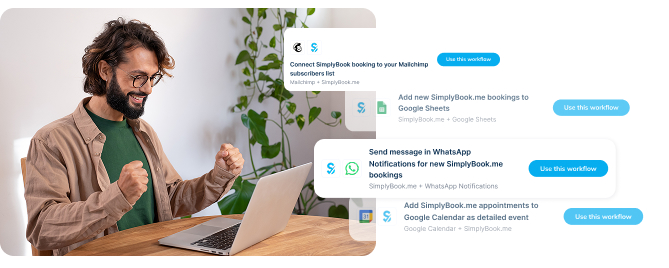
- Choose a Zap template from the SimplyBook.me admin panel, or click Create Zap to build one from scratch.
You can manage your Zaps and edit them directly inside the SimplyBook.me admin interface, thanks to Zapier’s embedded tools. No more bouncing between two tabs.
If you prefer the manual route, the Zapier plugin settings page still displays your company login, user login, and API key, ready to copy into Zapier the old way. Read the Zapier Connector set-up instructions in our Help Centre.
What if a Zap stops working?
The most common failure modes when something goes wrong with a Zap are predictable, and most can be fixed in a couple of minutes. If a Zap fails after the update, work through these checks in order:
- Confirm the connection is still authorized. In Zapier, go to App Connections and check that your SimplyBook.me account is still connected. If the connection is expired, reconnect it.
- Check that the trigger event actually happened in SimplyBook.me. A Booking Change Zap will not fire if the booking was newly created instead of modified, and a comment-only edit on a booking does not count as a change.
- For action failures, check the IDs and required fields. Get Client, Get Booking, and Cancel Booking all need a valid ID. Create Client and Create Booking need the required fields filled in.
- Confirm user permissions. The action runs under the permissions of the user who authorized the connection. If that user lost access to a service or staff calendar, the Zap will fail.
- Read the Zap history in Zapier. Zapier logs the request and response for every Zap run. The error message there usually points straight at the cause.
If you are still stuck, the SimplyBook.me support team can help you trace the issue. Have your Zap name, the trigger or action that failed, and the booking or client ID ready when you reach out.
Frequently asked questions
The Zapier plugin itself is included in your SimplyBook.me subscription, but Zapier charges separately for its own service. Zapier’s free plan includes a limited number of tasks per month, which is enough for trying things out. Higher-volume automations require a paid Zapier plan. Pricing is set by Zapier and updated on their site.
No. Both the SimplyBook.me Zapier integration and Zapier itself are designed for non-technical users. You build Zaps by selecting triggers and actions from a menu and mapping fields visually. No code is required.
Existing Zaps continue to work. The triggers have not changed, and the legacy API key authentication is still supported. You can keep your current setup as-is, or you can reconnect using the new OAuth 2.0 flow when convenient.
Yes. The new Create Booking action lets Zapier create a booking in your SimplyBook.me account based on a trigger from any other app in the Zapier ecosystem, such as a form submission, a CRM event, or a calendar invite.
Yes. The new Cancel Booking action cancels a booking by its ID. You can trigger cancellations from any other tool connected to Zapier, such as a CRM, a refund form, or a support ticket system.
Yes. You can sync new clients, log bookings, and update contact records in CRM platforms such as HubSpot, Salesforce, and ActiveCampaign whenever a booking event occurs in SimplyBook.me. With the new actions, you can also create or update SimplyBook.me clients and bookings from CRM events, so the data stays in sync in both directions.
OAuth 2.0 is a widely adopted authorization standard used by Google, Microsoft, Slack, and most modern SaaS platforms. Instead of sharing a permanent API key, OAuth issues short-lived tokens that refresh automatically and can be revoked at any time. It reduces the risk of credential leaks and makes the connection easier to manage.
As of May 2026, the integration uses User API v2. New authorizations go through the v2 endpoint. The v2 API is the current, supported version for SimplyBook.me integrations.
You can browse Zap templates directly from the Zapier plugin settings inside your SimplyBook.me admin panel, or visit the SimplyBook.me listing on Zapier’s app directory. Popular templates include Mailchimp subscriber sync, Google Sheets booking logs, Google Calendar event creation, and Telegram or WhatsApp notifications for new bookings.
No. If your SimplyBook.me account has the HIPAA custom feature enabled or uses Google Authenticator for two-step authentication, the Zapier connector will not work. This is by design, to maintain the security guarantees those features provide. If you operate in a regulated environment and need automation, contact SimplyBook.me support to discuss options.
Get started with the updated SimplyBook.me Zapier integration
The Zapier integration was already one of the most powerful ways to extend SimplyBook.me. With the new direct authorization flow and the five new actions, it now works in both directions, which means almost any workflow that touches your bookings can be automated end to end.
If you have not connected Zapier yet, the new flow takes a couple of minutes. If you have, it is worth a look at the new actions to see what you can simplify next.
Open your SimplyBook.me admin panel, head to the Zapier plugin, and start building. For the full feature overview, see the Zapier integration page on SimplyBook.me. For step-by-step setup instructions and the complete list of available data fields for each trigger, see the Zapier Connector custom feature page in our help centre.

 Previous post


Comments
0 commentsNo comments yet